Bluetooth
Your Bluetooth devices, signal and battery included.
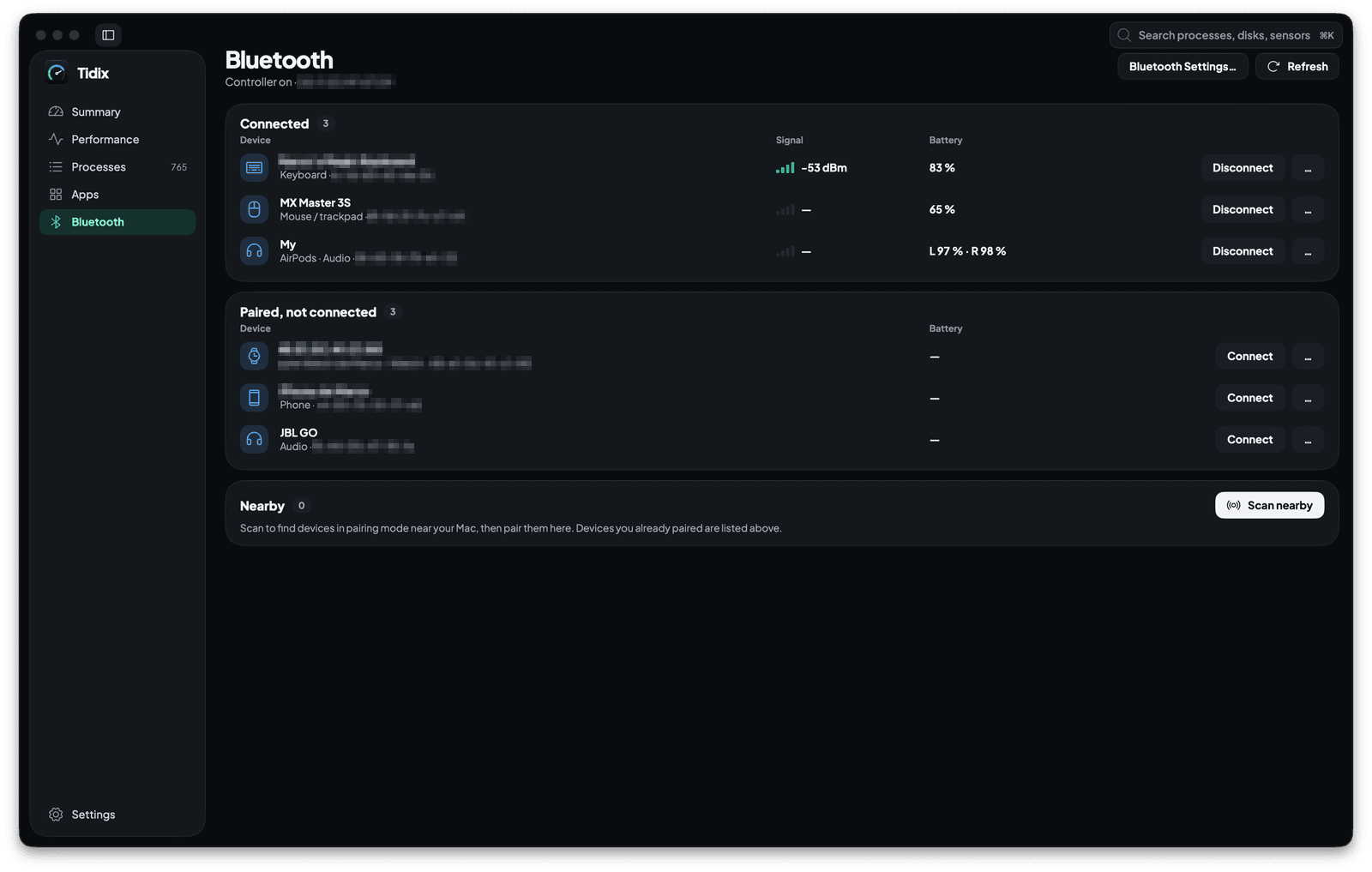
Activity Monitor has no Bluetooth view, and macOS keeps your devices in System Settings and Control Center. Tidix lists them on one page with their type, signal strength and battery, and lets you connect, rename, forget or pair them from there.
01 — Devices
Every paired device, connected or not
The page sorts your devices into two cards, Connected and Paired, not connected, each with its count. A row shows the device's name, its type and its address, plus its own name when you renamed it. Classic devices announce their type through their Class of Device; for the rest, Tidix uses the type macOS reports or recognizes an iPhone, iPad, Apple Watch or Mac by its name.
- Types such as keyboard, mouse / trackpad, headphones, speaker, phone and watch, each with its icon.
- The header shows whether the Bluetooth controller is on, and its address.
- The list updates every 5 seconds while the page is open; Refresh reads it right away.
02 — Readings
Signal in dBm, battery down to each earbud
For a connected device, the Signal column shows its RSSI in dBm next to four bars: all four at -60 dBm or stronger, one fewer for every 10 dB below, down to one. The Battery column shows the level macOS publishes: one percentage for a mouse or keyboard, left, right and case for earbuds that report them. A device that isn't connected shows the last level macOS kept for it, when there is one.
- When macOS has no reading for a link, a dash takes the place of the number.
- A card where no device has a reading leaves the Signal column out.
- Battery levels come from the I/O Registry, accessory power sources and
system_profiler.
03 — Connect
Connect or disconnect with one click
Each paired device has its action on its row: Connect when it isn't connected, Disconnect when it is. While it connects, the row shows Connecting… with a Cancel link, and if the device doesn't answer, Tidix suggests turning it on and bringing it closer, then offers Try again.
- The … button, or a right click on the row, opens the same action with Rename…, Copy address and Forget this device….
- Bluetooth Settings…, next to Refresh, opens Bluetooth in System Settings.
04 — Manage
Rename a device, or forget it without locking yourself out
Rename… gives a device a new name on your Mac: Tidix and Bluetooth settings show it, the device keeps its own name, and Use original name puts that one back. Forget this device… asks you to confirm, and Return never forgets by accident. If the device looks like your only keyboard, the confirmation warns you first: you couldn't type on this Mac until you connect it with its cable to pair it again.
- Before it warns you, Tidix checks the keyboards attached to your Mac; a MacBook's built-in keyboard counts as another one.
- Virtual keyboards, and mice or security keys that also act as a keyboard, don't count.
- When Tidix can't tell, it warns you anyway.
05 — Nearby
Scan nearby and pair Classic devices on the spot
Scan nearby searches for 12 seconds for Bluetooth Classic and Low Energy devices in pairing mode, leaving out the ones you already paired. A Classic device gets a Pair button: when it asks for a code, Tidix shows the passkey to type on it, or a six-digit code to compare before you click Confirm, then the device joins your list.
- Each device found shows its type and, when there is one, its signal in dBm.
- Low Energy devices are listed too and pair in Bluetooth settings; the card takes you there.
- Stop scanning ends the scan early, and a failed attempt offers Try again.
Why it matters
Before and after
With Activity Monitor
You open Control Center or System Settings › Bluetooth and go through your devices one by one to find which headphones are running low. Activity Monitor can't help: it has no Bluetooth view. For the new keyboard, you stay in System Settings and wait for it to show up.
With Tidix
You press ⌘5: the Bluetooth page lists every device with its battery, earbuds with left, right and case. Scan nearby finds the new keyboard and, if it's a Classic one, Pair shows the code to type on it before it joins your devices.
How to use it
Where it is in Tidix
- Choose Bluetooth in the Tidix sidebar, or press
⌘5. - The first time, click Allow… on the card that explains why Tidix needs Bluetooth access, then answer the macOS prompt. Until you allow it, the page reads nothing.
- If you declined, click Open Privacy Settings… and turn on Tidix in Privacy & Security › Bluetooth.
- To add a device, put it in pairing mode near your Mac and click Scan nearby.
Compared
Bluetooth: Activity Monitor and Tidix
| What | Activity Monitor | Tidix |
|---|---|---|
| Bluetooth devices | No Bluetooth view | Connected and paired devices on one page, with type and address |
| Signal strength | Not shown | RSSI in dBm and four bars for each connected device with a reading |
| Battery | Not shown for accessories | Each device's level, with left, right and case for earbuds |
| Connect and disconnect | Not available | One button per device, with Cancel and Try again |
| Rename and forget | Not available | From each device's menu, with a warning before you forget your only keyboard |
| Pair a new device | Not available; macOS pairs in System Settings | Scan nearby pairs Classic devices with a passkey or code; Low Energy ones pair in Bluetooth settings |
The words behind it
- Bluetooth Classic
The original form of Bluetooth, also called BR/EDR, built for steady links such as audio. A Classic device announces what it is through its Class of Device.
- Bluetooth Low Energy (BLE)
A power-saving form of Bluetooth, introduced with Bluetooth 4.0, for devices that send little data and must make a small battery last. A device can support Classic, Low Energy or both.
- Class of Device
A code a Bluetooth Classic device sends to say what it is, such as a keyboard, headphones or a phone. Devices that use only Low Energy don't send one, so Tidix uses the type macOS reports for them.
- RSSI
Received Signal Strength Indicator: how strong a device's radio signal arrives, in dBm. Readings are negative, and closer to zero is stronger, so -50 dBm beats -80 dBm.
- Pairing
The one-time exchange of keys that lets a Mac and a device trust each other, so they reconnect later without asking. Forgetting a device deletes those keys, so it has to be paired again.
- Passkey (Bluetooth)
A six-digit code used to pair a keyboard: the Mac shows it, you type it on the keyboard and press Return. A related check shows the same code on both sides for you to confirm.
Questions
Why does Tidix ask for Bluetooth access?
macOS requires your permission before an app uses Bluetooth. Until you allow it, the page shows only a card that explains why and reads nothing: no devices, no battery levels, no scan. macOS asks once; if you declined, Open Privacy Settings… takes you to the Bluetooth list in Privacy & Security.
Can Tidix pair Low Energy devices?
Scan nearby lists the Low Energy devices it finds, with their signal, but it pairs only Classic devices. A device that uses only Low Energy shows Pair in Bluetooth settings, and the card takes you to System Settings to finish there.
Does renaming change the name on the device itself?
No. The new name is set on your Mac, so Tidix and Bluetooth settings both show it, while the device keeps its own name. Tidix shows that original name under the new one, and Use original name brings it back.
What if I forget my only keyboard?
Before it asks you to confirm, Tidix checks the keyboards attached to your Mac. If it finds no other real keyboard, the confirmation warns that you can't type on this Mac until you connect the keyboard with its cable to pair it again. A MacBook's built-in keyboard counts, and when Tidix can't tell, it warns you anyway.
Why do some devices show a dash for signal or battery?
Tidix shows a signal only for connected devices, and only when macOS has a reading for the link; some links, often Low Energy ones, have none. A battery level appears when the device reports one to macOS. A dash means there is no reading, never a guess.
Why don't I see Rename… or Forget this device… in the menu?
Tidix offers them only when your version of macOS lets it rename or unpair a device. Without them, you can still do both in Bluetooth settings: the Bluetooth Settings… button at the top of the page opens it.
Keep reading
More of Tidix
Performance
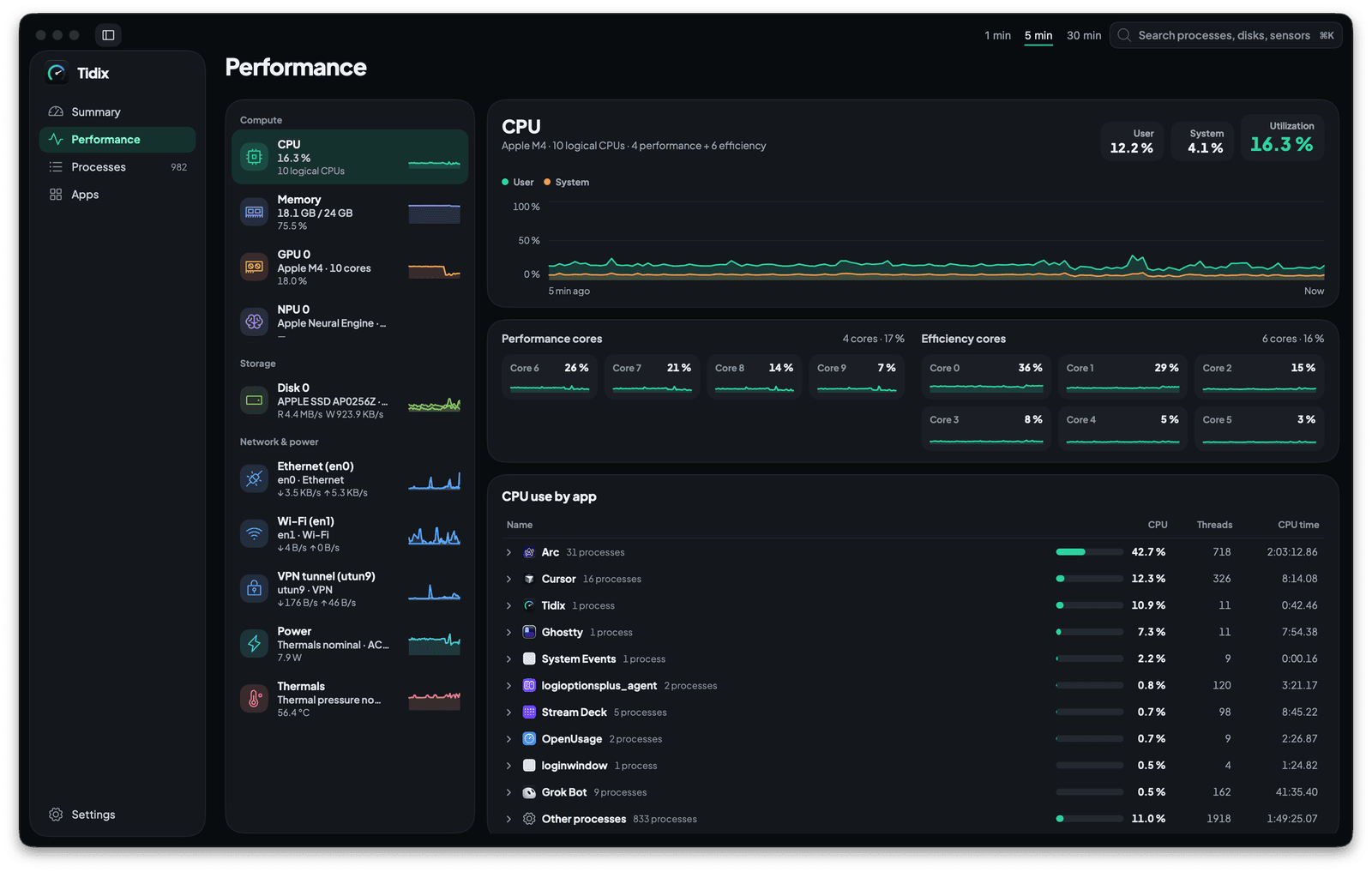
Each core, disk and network interface on its own live chart, with the apps behind the load.
See how it works
Processes
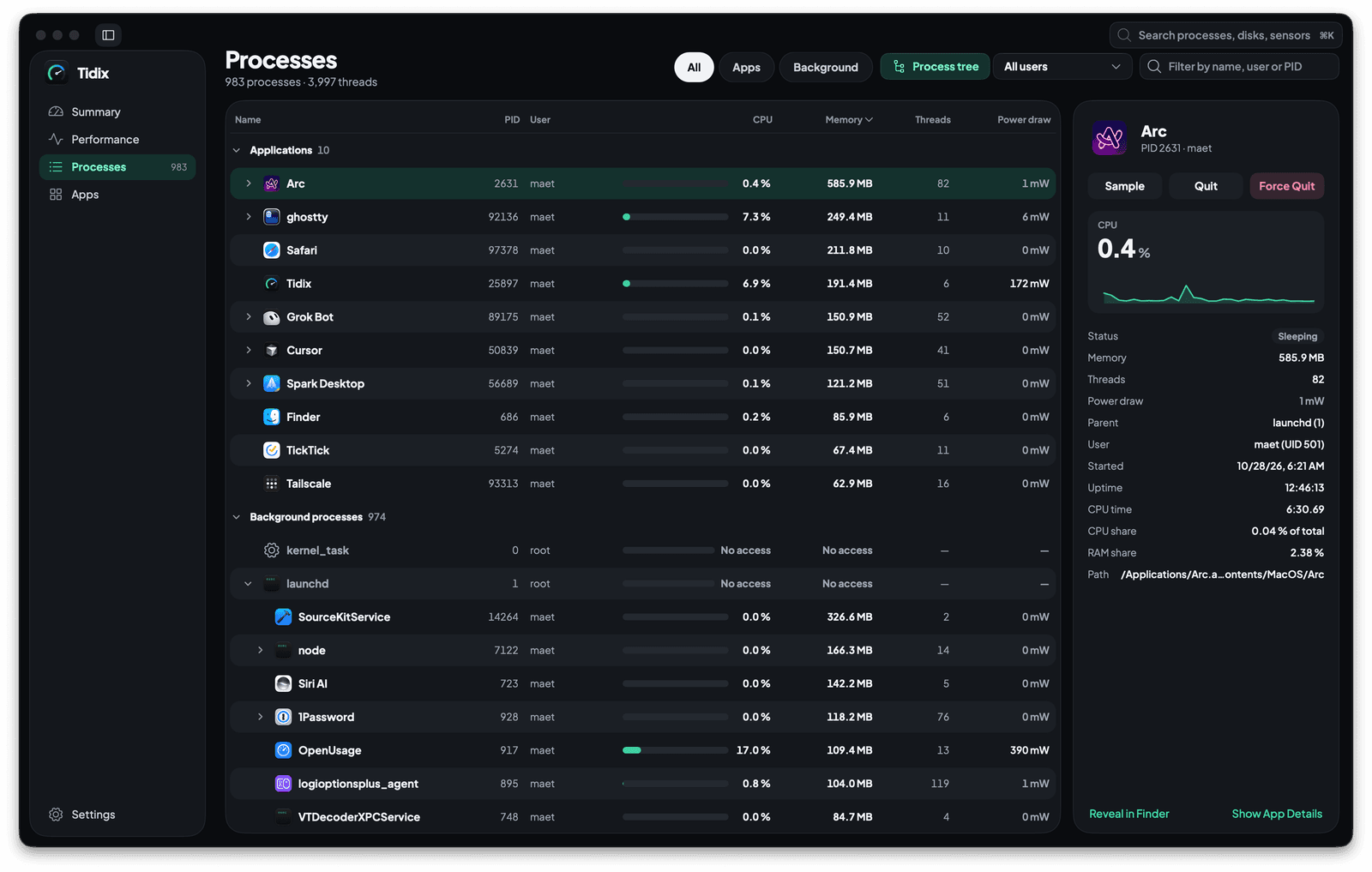
Every process in a tree with its CPU, memory and power draw, ready to quit, pause or sample.
See how it works
Apps
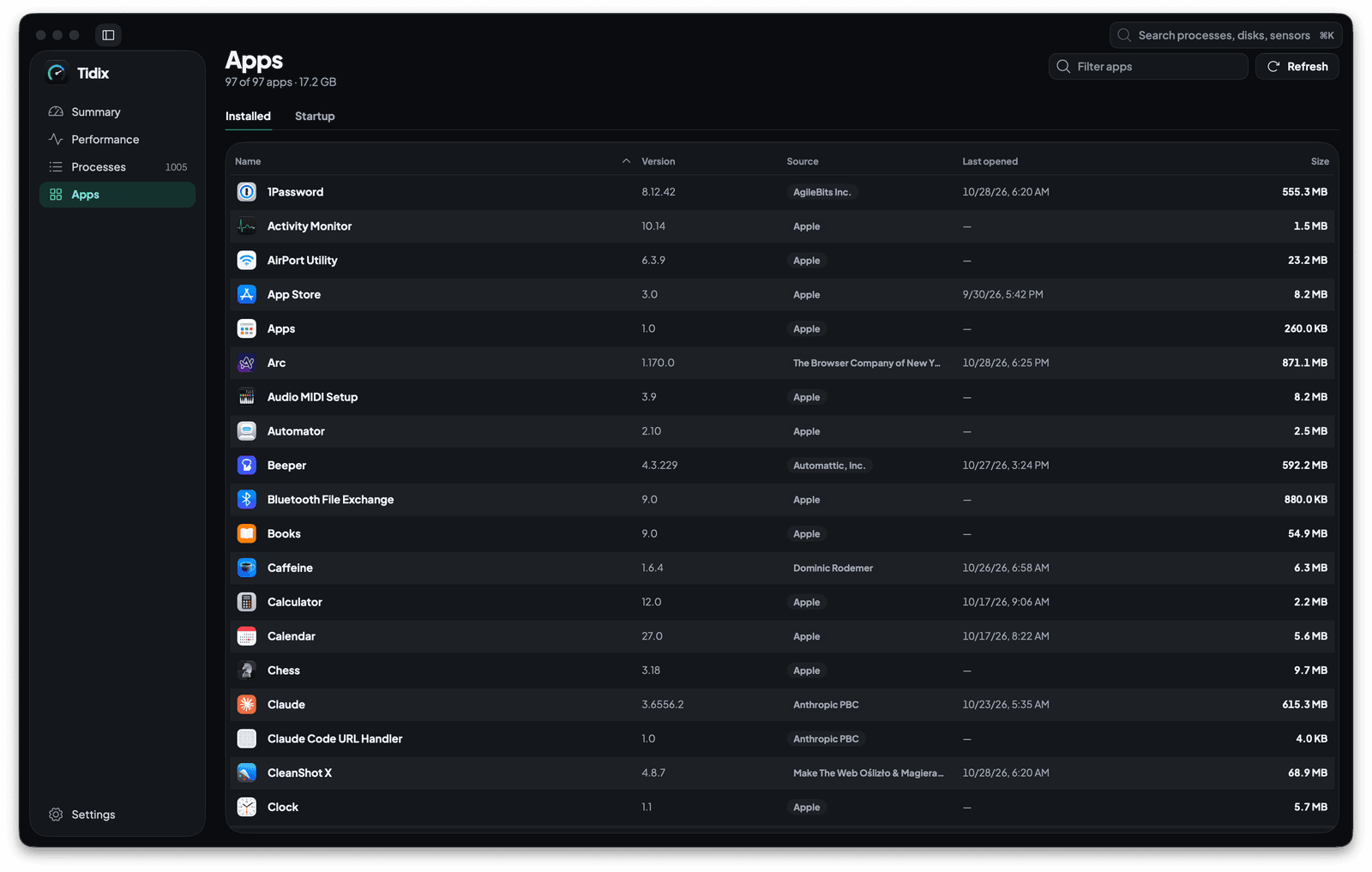
Every app on your Mac with its version, source and size, and everything set to start on its own.
See how it works
App details
Click any app for its processes, usage, 30 days of history and related files, and uninstall it to the Trash.
See how it works
Stop guessing. Start seeing.
Every core, sensor, disk, and process on your Mac, in one native app you pay for once.
Buy Tidix — from $5One-time purchase · 14-day refund · macOS 13 or later