Processes
Find what's slowing your Mac, and stop it.
Activity Monitor spreads a process across separate tabs. Tidix shows its CPU, memory, threads and power draw in one row of a process tree, and quits, pauses or samples it from the same place.
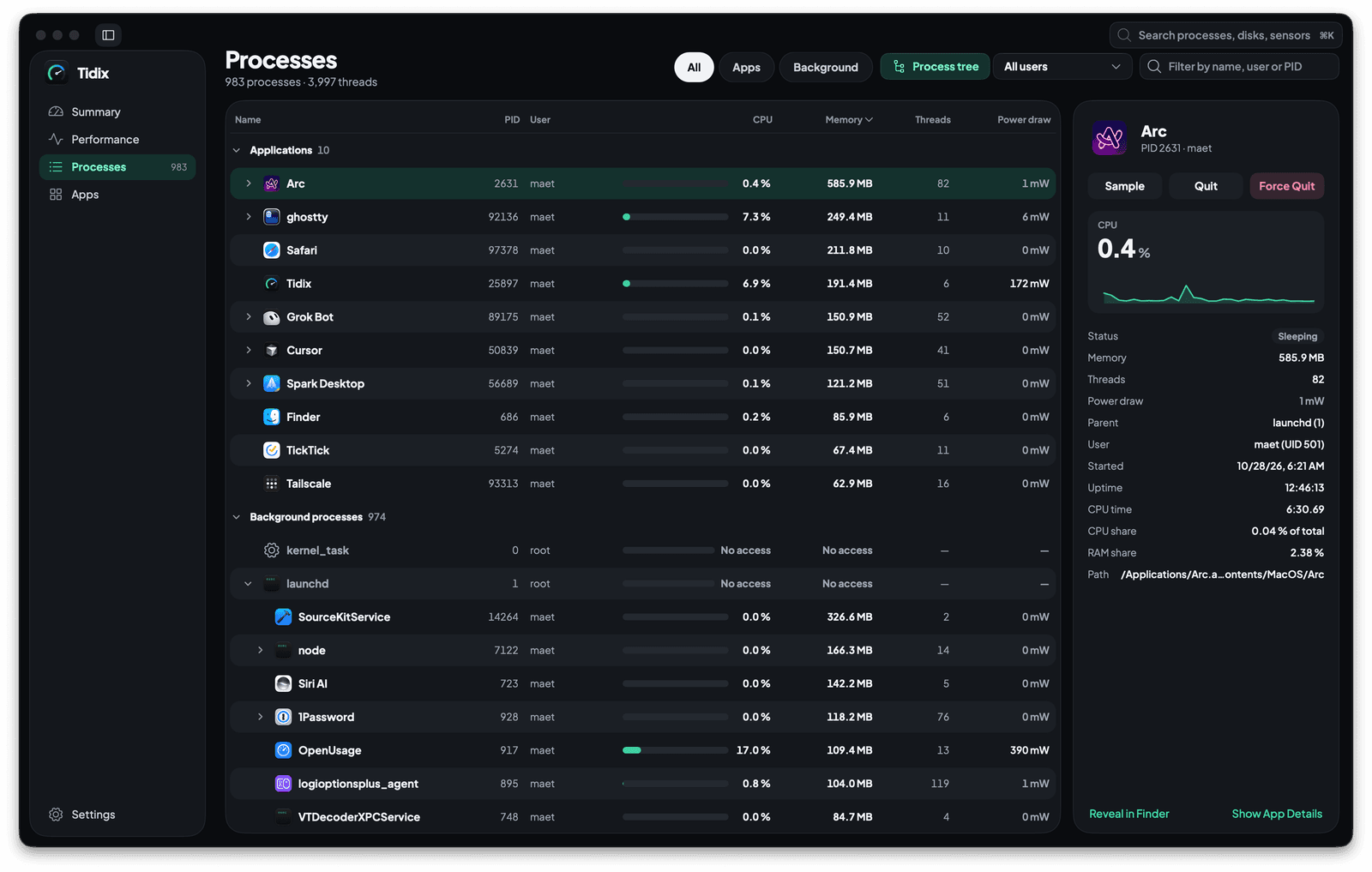
01 — Tree
See which process started which.
Process tree puts each process under its parent. Apps sit at the top of Applications with their helper processes inside, and everything else falls under Background processes, most of it beneath launchd. Turn the button off for a flat list; typing in the filter field flattens the list too.
- Each group shows how many processes it holds
- The line under the title counts every process and thread on your Mac
- Expand an app to see the helper processes it started
02 — Columns
CPU, memory and power draw in one table.
Name, PID, User, CPU, Memory, Threads and Power draw show from the start. Right-click the header to add Status, Disk read, Disk write, Wakeups/s, CPU time or Path, and Tidix remembers your choice. Click a header to sort; CPU, threads and CPU time re-sort every 5 seconds, so rows hold still while you aim.
- Power draw in milliwatts and watts: 1 W and up stands out, under 50 mW is dimmed
- CPU counts one core as 100%, or the whole Mac, as you choose in Settings › General › Units
- Values are highlighted as they change, unless you turn it off in Settings › Processes
03 — Filters
Narrow hundreds of processes down to one.
Show All processes, only Apps, or only Background ones, and pick whose: All users, My processes only, System processes or Root processes. The filter field matches a name, a user, a PID or a path. From any page, ⌘K finds a process by name and opens Processes filtered to it.
- Apps are the ones that appear in the Dock, each with its icon
- System processes run under macOS service accounts below UID 500, other than root
- Track process keeps a process in view while the list re-sorts
04 — Actions
Quit it, pause it, or send it to the back of the line.
Right-click a process. Quit process sends SIGTERM so it can exit cleanly, and Force quit sends SIGKILL to stop it at once; both ask first and name the process and its PID. The same menu pauses and resumes it, sends any of 11 signals, and sets its priority.
- Quit process tree sends the signal to a process and all its descendants
- Pause (
SIGSTOP) freezes a process until you choose Resume (SIGCONT) - Set priority lowers a busy process to Below normal, Low or Idle
- In the Process menu, ⌘⌫ quits the selected process and ⌥⌘⌫ force quits it
05 — Details
Everything about one process, beside the list.
Select a process to see a graph of its last minute of CPU, then its status, memory, threads, power draw, parent, user, start time, uptime, CPU time, share of the Mac's CPU and RAM, and path. Sample records it for 3 seconds with macOS's sample tool and opens the report in your text editor.
- Reveal in Finder shows its file; double-clicking the row does the same
- Show App Details opens the app it belongs to
- Inspect… in the right-click menu adds how many files it has open and its full
psline - Exited processes stay in red for 8 seconds, or 3 to 30 as set in Settings › Processes
Why it matters
Before and after
With Activity Monitor
Your Mac feels slow. In Activity Monitor you sort the CPU tab, switch to the Energy tab to see what the busy process costs, and turn on the hierarchical view to find what started it, then go back to quit it.
With Tidix
In Tidix you open Processes and sort by CPU: power draw sits in the same row, and the process hangs under the one that started it. Select it for its last minute of CPU, then quit it with its whole tree, or lower its priority and let it finish.
How to use it
Where it is in Tidix
- Click Processes in the sidebar, or press ⌘3.
- Choose All, Apps or Background, and type in the filter field to narrow the list.
- Select a process for its details on the right, or right-click it to quit, pause, signal, reprioritize or sample it.
- From any page, press ⌘K and type a process name to jump straight to it.
Compared
Processes: Activity Monitor and Tidix
| What | Activity Monitor | Tidix |
|---|---|---|
| Where the numbers are | Separate tabs for CPU, memory, energy, disk and network, each with its own columns. | One table: CPU, memory, threads, power draw, disk reads and writes, and wakeups side by side. |
| Parent and child | View › All Processes, Hierarchically. | A Process tree button next to the filters, with apps on top and their helpers inside. |
| Power per process | Energy Impact in the Energy tab, a relative score without units. | Power draw in milliwatts and watts, in the same row as CPU and memory. |
| Quitting | Quit or Force Quit the selected processes. | Quit or force quit a process, or a parent with all its descendants, after a confirmation. |
| Signals | View › Send Signal to Process, then pick a signal from a list. | A Send signal submenu with 11 signals by name and number, plus Pause and Resume. |
| Sampling | View › Sample Process shows the report in an Activity Monitor window. | Sample runs macOS's sample tool for 3 seconds and opens the report in your text editor. |
The words behind it
- Process tree
Processes arranged by parent, each one under the process that started it; on a Mac most of them descend from
launchd, the first process the kernel starts. In Tidix, the Process tree button shows the Processes list this way. - Process signal
A short message macOS delivers to a process, such as
SIGTERM(quit cleanly),SIGKILL(stop at once, cannot be caught) orSIGSTOP(pause). In Tidix, Quit sendsSIGTERMand Force Quit sendsSIGKILL. - Process priority
How much CPU time a busy process gets next to the others, set by its nice value from -20 (highest priority) to 20 (lowest); most processes run at 0. Raising the nice value makes a process yield to the rest, and only root can lower it again.
- Wakeups
How often a process's threads wake up to run, which keeps the processor from resting and costs energy. Tidix's Wakeups/s column counts context switches per second, an approximation of that activity rather than a direct wakeup count.
- Process sample
A short recording of what each thread of a process is doing, taken many times a second, that shows which functions it spends its time in. Tidix's Sample runs macOS's
sampletool for 3 seconds and opens the report as a text file.
Questions
How do I find what's slowing my Mac down?
Open Processes and click the CPU header to sort by it, or Power draw to see what costs the most energy right now. With Process tree on, you also see whether a busy helper belongs to an app. Select it for a graph of its last minute of CPU.
Quit or Force Quit: which one should I use?
Start with Quit: it sends SIGTERM, so the process can save its work and exit cleanly. Use Force Quit when it doesn't respond: SIGKILL stops it at once, and unsaved data is lost. Tidix asks before either one.
What does pausing a process do?
Pause (SIGSTOP) freezes the process where it is: it uses no CPU, and its status reads Stopped until you choose Resume (SIGCONT). It keeps its memory while it waits, so it picks up where it left off.
Can I change a process's priority?
Right-click it, choose Set priority, and pick Below normal, Low or Idle to make it yield the CPU to the apps you're using. Lowering is one-way in Tidix: macOS doesn't let an app running under your account raise a priority again.
Why do some processes show No access?
macOS lets an app running under your account read CPU and memory only for your own processes. For processes owned by root or other accounts, Tidix shows No access instead of guessing, and still lists their name, PID, user and parent.
How do I find out what an unknown process is?
Right-click it. Search the web looks up its name, Show in Finder shows where its file lives, and Inspect… lists its path, parent, number of open files and full ps line. If it belongs to an app, Show App Details opens that app.
Keep reading
More of Tidix
Performance
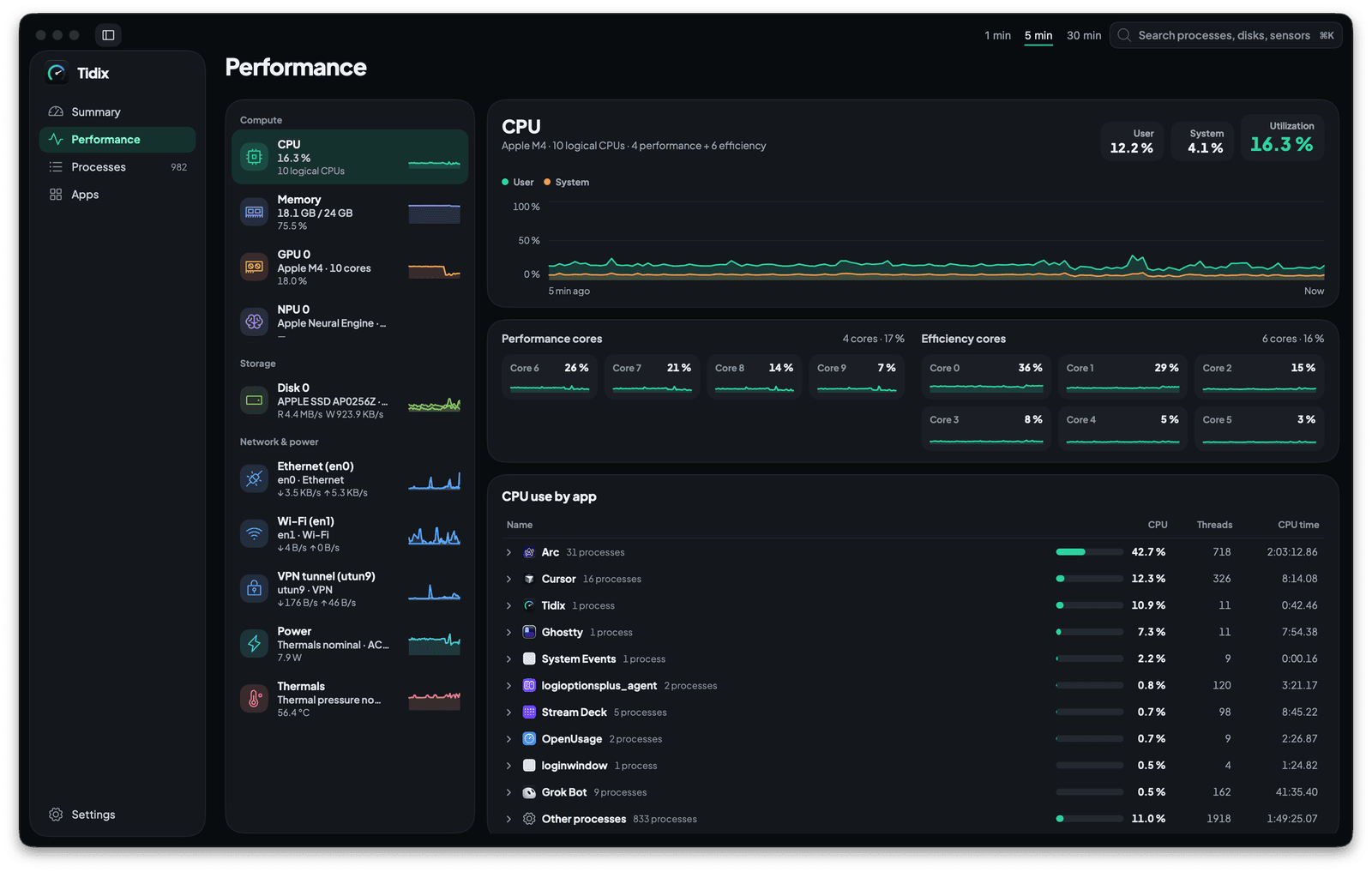
Each core, disk and network interface on its own live chart, with the apps behind the load.
See how it works
Apps
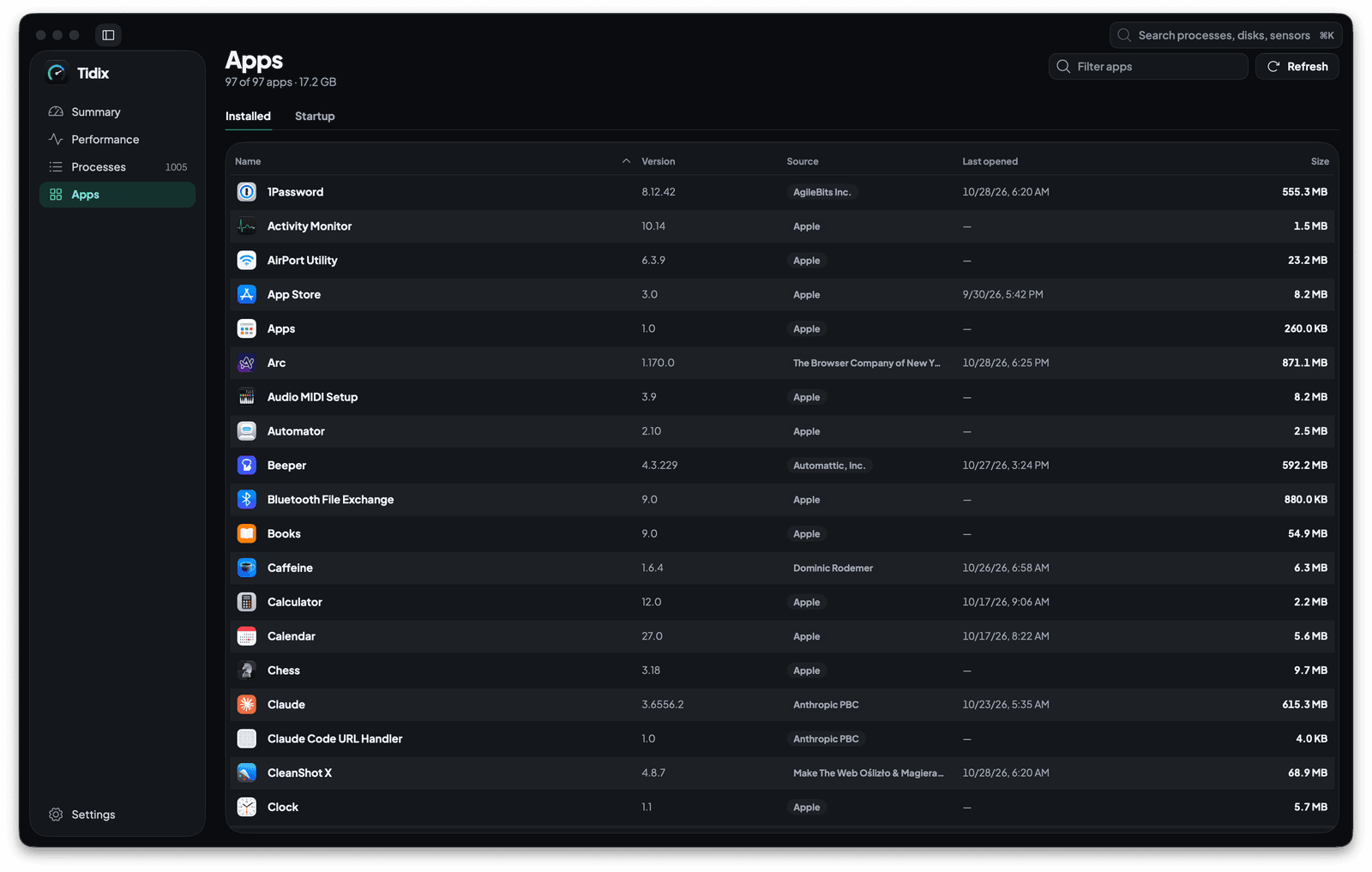
Every app on your Mac with its version, source and size, and everything set to start on its own.
See how it works
App details
Click any app for its processes, usage, 30 days of history and related files, and uninstall it to the Trash.
See how it works
Bluetooth
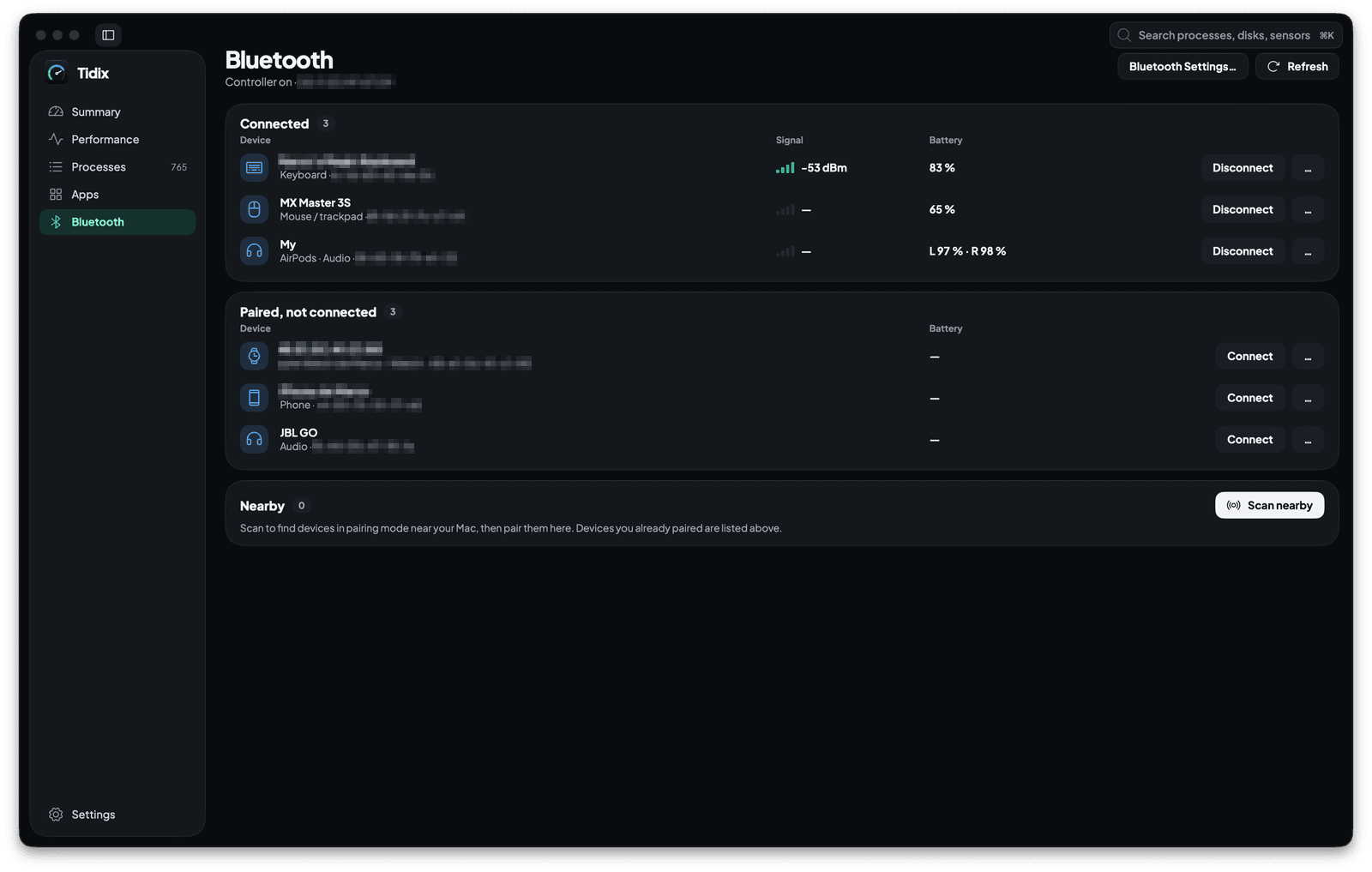
Every paired device with its type, signal and battery. Connect, rename, forget or pair one from the same page.
See how it works
Stop guessing. Start seeing.
Every core, sensor, disk, and process on your Mac, in one native app you pay for once.
Buy Tidix — from $5One-time purchase · 14-day refund · macOS 13 or later