App details
Everything about one app, in one drawer.
Activity Monitor shows processes one row at a time, and only while they run. Tidix opens a drawer for the whole app: its processes added up, its history, its size and its related files, with Uninstall at the bottom.
01 — Open
Click an app wherever Tidix lists it
The drawer opens from the Apps list, from Summary's Top apps, from the app lists on Performance, and from any process inside an app on the Processes page. It slides in over the page, which keeps updating underneath, and its header shows the app's version, whether it is running, its uptime and when you last used it.
- Apps: click a row, or move through the list with the arrow keys and the drawer follows.
- Processes: choose Show App Details in the inspector or in the row's menu.
- Search: press ⌘K, type the app's name and pick it.
- Click another app and the drawer switches in place; Esc or a click outside closes it.
02 — Processes
Every process the app runs, added up
The Processes tab counts every process inside the app's bundle as part of the app, helper processes included. Cards add up their memory, CPU, power draw, disk reads and writes and network traffic next to the app's size on disk, and the list shows each process with its PID, CPU and memory, busiest first.
- Sort the list by name, PID, CPU or memory with a click on the column.
- Quit and Force Quit act on the whole app, and both ask first.
- Show in Finder reveals the app's bundle.
03 — History
One app over the last 5 minutes or 30 days
The Performance tab charts this app alone: memory, CPU, power draw, network and disk. 5 minutes is live, kept in memory since Tidix started; 1 hour and 24 hours show hourly averages and 7 days and 30 days daily averages from the saved metrics history, counted only while the app ran.
- The line breaks over the hours or days the app was not running, instead of drawing a zero.
- The history is recorded while Save metrics history is on in Settings, which is the default.
04 — Info
What the app is and where it keeps its files
The Info tab reads the app's bundle: its bundle identifier, version, source, when it was last opened and modified, its path and whether it runs at startup. Two tiles total its size and its related files, and the list under them names each file in ~/Library with its size.
- Source says Apple, App Store, or the developer who signed the app.
- Runs at startup counts the startup items the app owns, and Show opens them in the Apps page's Startup view.
05 — Uninstall
Uninstall moves the app and its leftovers to the Trash
Uninstall… asks first, and says how many related files go with the app and how much space they take. Everything goes to the Trash instead of being deleted, so you can restore it from there, and the drawer closes once the app is in the Trash.
- Tick App only, without related files to keep them.
- It looks in Application Support, Caches, Preferences, Containers, Logs, Saved Application State, HTTPStorages, WebKit and Cookies, by the app's name or bundle identifier.
- Apple's own apps are part of macOS, so Tidix never offers to uninstall them.
Why it matters
Before and after
With Activity Monitor
In Activity Monitor you hunt for the app's processes row by row, add up its helpers yourself and see only what they use right now. To remove the app you drag it to the Trash in Finder, and its folders in ~/Library stay behind.
With Tidix
In Tidix you click the app. The drawer adds up every process, charts up to 30 days, lists its related files with their sizes, and Uninstall… moves the app and those files to the Trash after asking first.
How to use it
Where it is in Tidix
- Open Apps in the sidebar (⌘4) and click an app, or click one in Summary's Top apps or in an app list on Performance.
- On Processes (⌘3), select a process that belongs to an app and choose Show App Details.
- Switch between the Processes, Performance and Info tabs, and press Esc to close the drawer.
Compared
App details: Activity Monitor and Tidix
| What | Activity Monitor | Tidix |
|---|---|---|
| What a row is | One process; an app's helpers are separate rows | The whole app, with every process inside its bundle added up |
| Closed apps | Running processes only, or the apps of the last 12 hours | Any installed app, with a Not running tag and when you last used it |
| History | Live values; no charts of one app over hours or days | Charts of one app over 5 minutes, 1 hour, 24 hours, 7 days or 30 days |
| One process up close | The Inspect window shows its stats, open files and ports | The Processes tab lists each process with its PID, CPU and memory |
| Size on disk | Not shown | The app's size, plus each related file in ~/Library with its size |
| Uninstall | Not offered; dragging an app to the Trash in Finder leaves its files behind | Moves the app and its related files to the Trash after asking first |
The words behind it
- Related files
Files an app keeps outside its own bundle, mostly in
~/Library: support folders, caches, preferences, containers, logs, saved window state and cookies. Dragging the app to the Trash leaves them behind. - Helper process
A separate process an app starts from inside its own bundle to do part of its work, such as rendering web pages. Activity Monitor lists each one on its own row; Tidix adds them up under their app.
- App uptime
How long an app has been running. Tidix counts it from the start of the app's oldest process still running, helpers included.
- Bundle identifier
The unique reverse-DNS name a Mac app declares in its Info.plist, such as
com.apple.Safari. Most of the app's preferences, containers and caches are named after it.
Questions
What does Uninstall remove?
The app itself and, unless you tick App only, without related files, the related files the Info tab lists: its folders and files in ~/Library, such as Application Support, Caches, Containers and Preferences. Nothing else is touched.
Can I undo an uninstall?
Yes, until you empty the Trash. Tidix moves the app and its files to the Trash instead of deleting them, and the confirmation reminds you that you can restore them from there.
Why can't I uninstall some apps?
Apple's own apps are part of macOS, so the Uninstall… button stays dimmed for them.
Why is an app's history empty?
The 1 hour to 30 days ranges read the saved metrics history, which starts when Tidix starts recording and only covers the hours the app ran. If Save metrics history is off in Settings, the tab tells you to turn it on; the 5 minutes range works either way.
Does it show GPU use per app?
No. Tidix measures GPU use for the whole Mac only, so the app's GPU card shows a dash. The GPU itself is on the Performance page.
Which processes count as part of an app?
Every process whose program sits inside the app's bundle, helpers included. A browser's helper processes add up under the browser, and an app nested inside another app's bundle counts toward the outer one.
Keep reading
More of Tidix
Performance
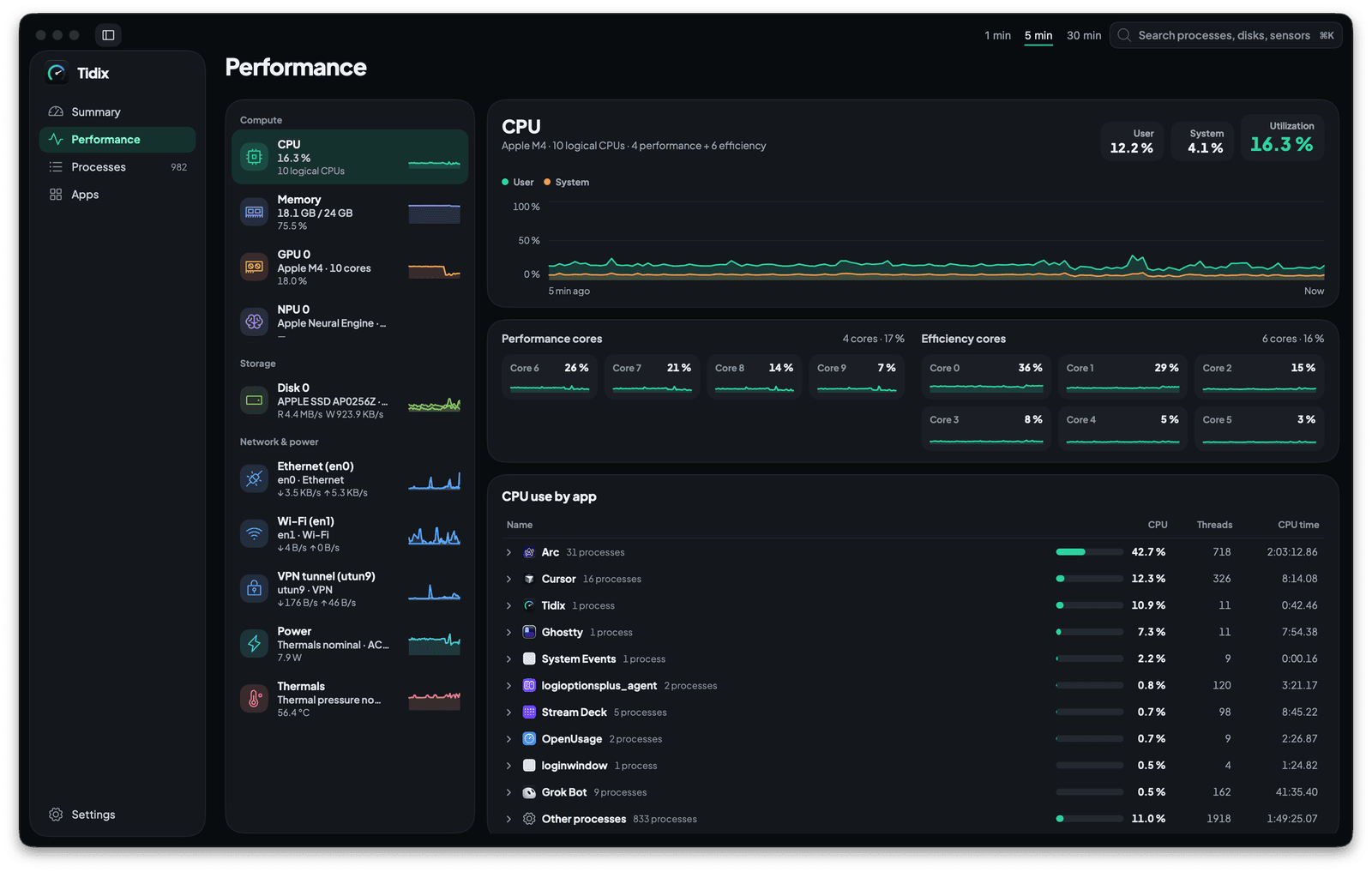
Each core, disk and network interface on its own live chart, with the apps behind the load.
See how it works
Processes
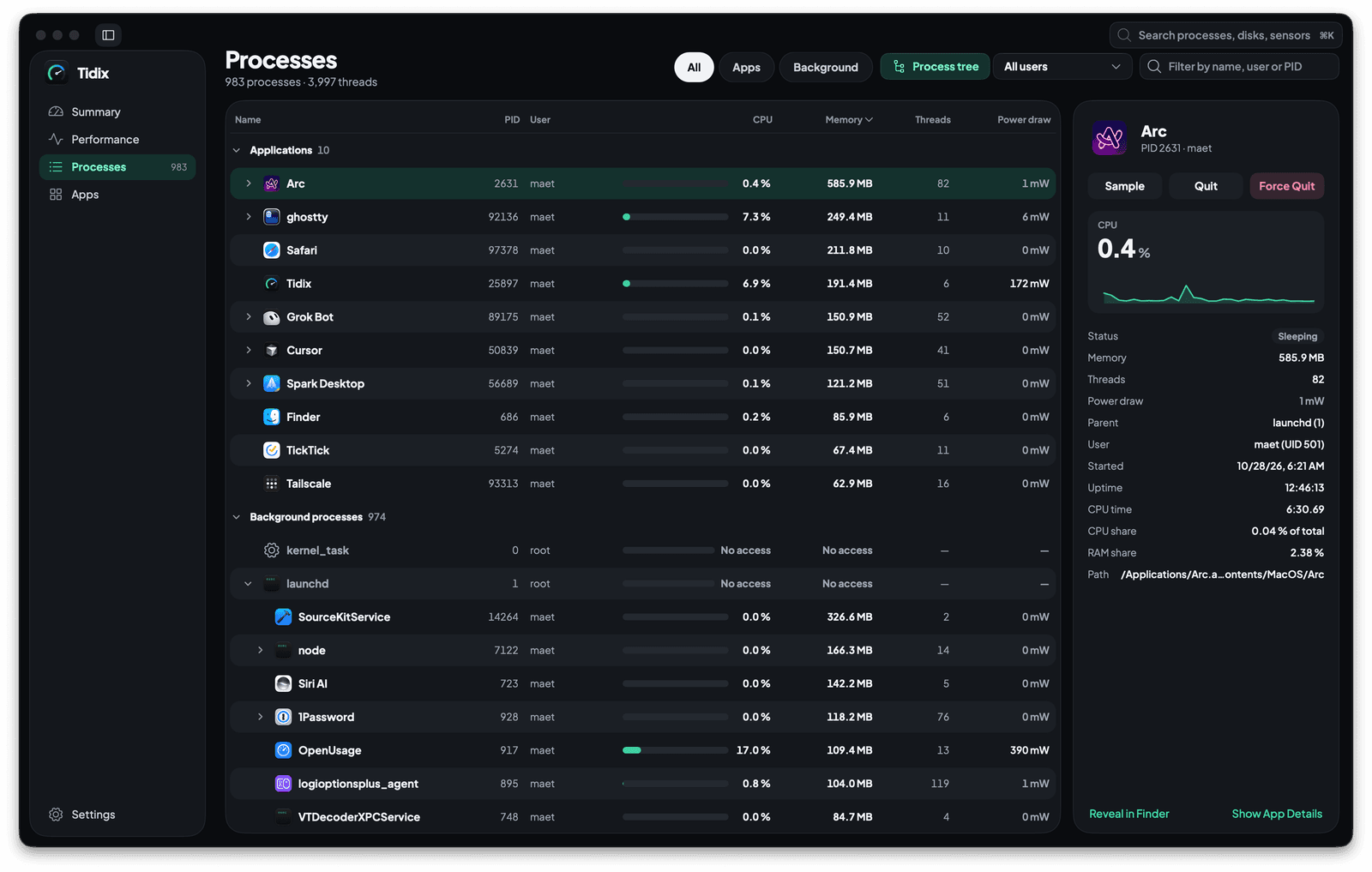
Every process in a tree with its CPU, memory and power draw, ready to quit, pause or sample.
See how it works
Apps
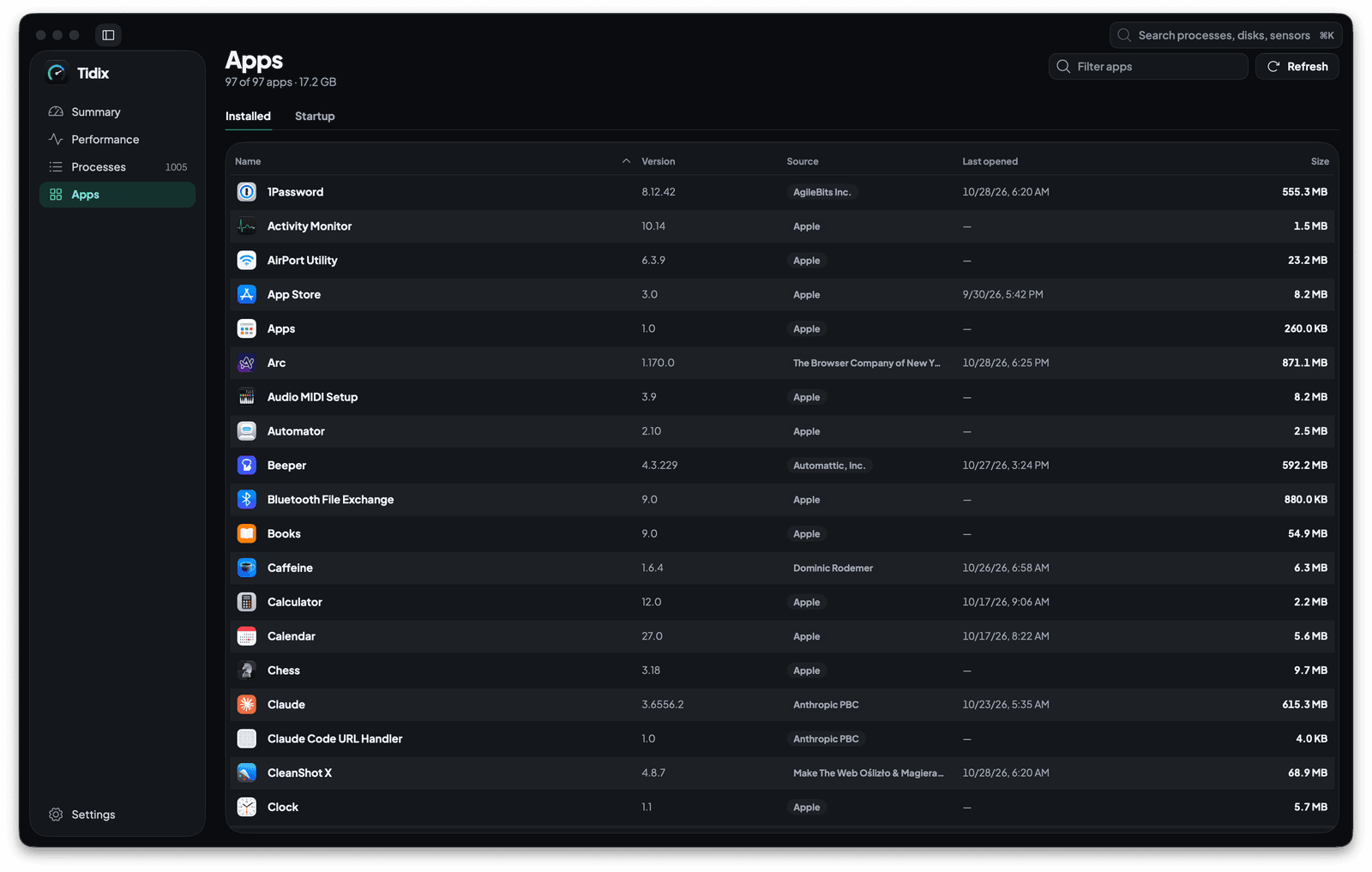
Every app on your Mac with its version, source and size, and everything set to start on its own.
See how it works
Bluetooth
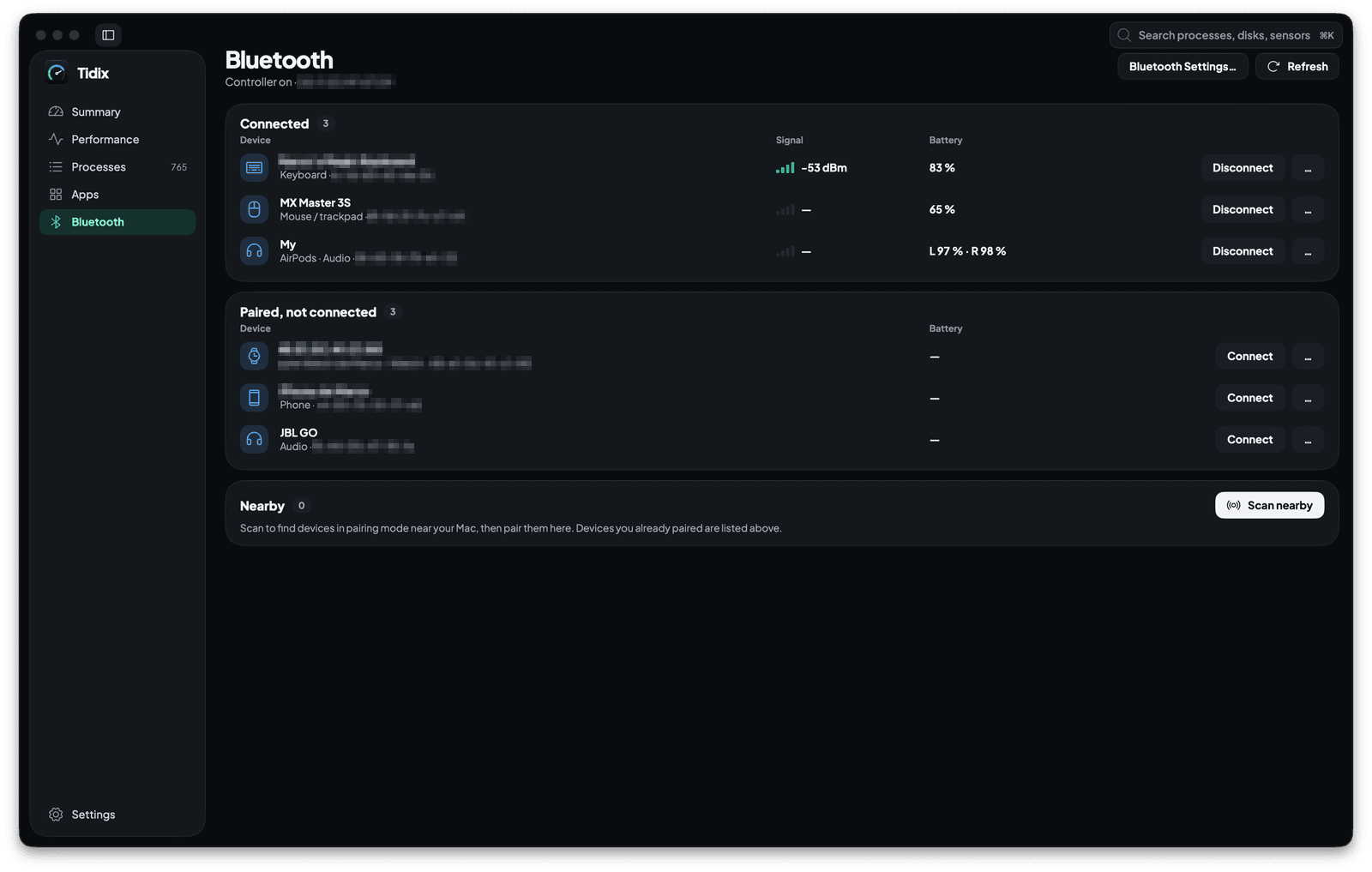
Every paired device with its type, signal and battery. Connect, rename, forget or pair one from the same page.
See how it works
Stop guessing. Start seeing.
Every core, sensor, disk, and process on your Mac, in one native app you pay for once.
Buy Tidix — from $5One-time purchase · 14-day refund · macOS 13 or later